All free resources

Free skill

Clean the AI marks out of your own writing.

AI can leave invisible characters and stiff, formulaic phrasing in your writing. This free, open-source skill cleans both while keeping your facts and your voice. Setup takes about 5 minutes in the Claude app, no coding.

1

Pick your version

The project comes as two skills. Start with the simple one.

Clean User-Facing Text: Strips hidden characters AI tools leave in text, then rewrites stiff, formulaic phrasing. Text only, nothing extra to set up. This is the one most creators need.

Remove AI Marks: The full version. Also cleans hidden data from images, PDFs and Word files. It needs a small helper program running on your computer, so it's best for Claude Code users (see step 5).
2

Download the skill from GitHub

Gets you the one folder Claude needs, zipped and ready to upload.

Go to: github.com/guillaumemeyer/watermarks-remover

Download: click the green Code button, then Download ZIP. Unzip it (Windows: right-click, Extract All. Mac: double-click).

Find the folder: open the skills folder inside and find clean-user-facing-text.

Zip it: right-click that one folder. On Windows 11, choose Compress to, then ZIP file. On a Mac, choose Compress.

Tip: Zip the folder itself, not the files inside it, or Claude will reject the upload.

3

Add it to Claude

Installs the skill in the Claude desktop app or at claude.ai. No coding.

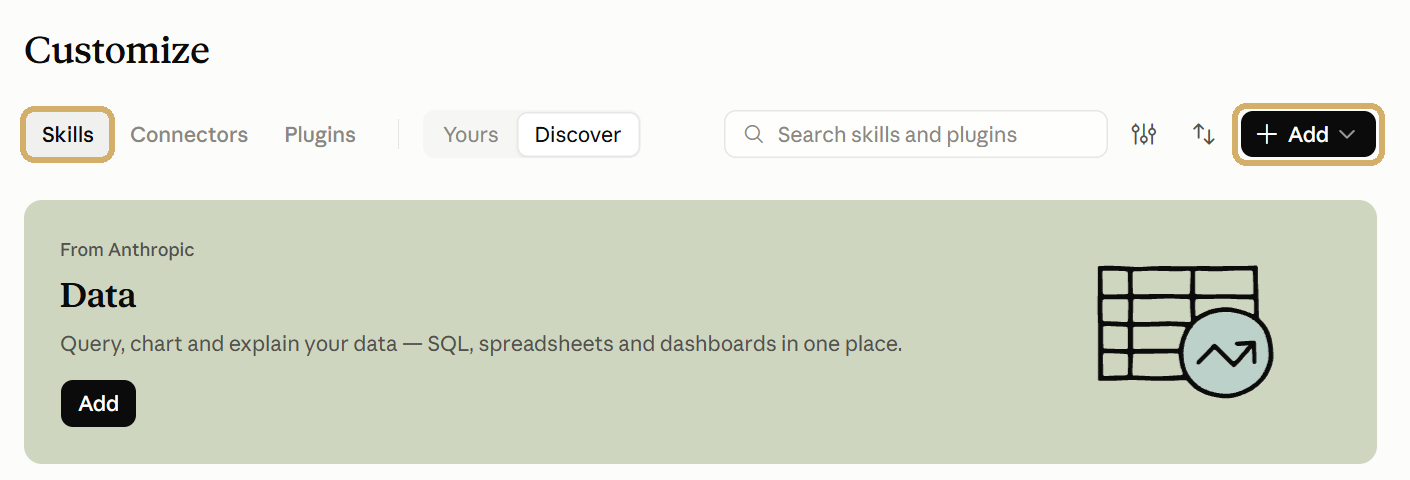
Open: Customize in the left sidebar, with the Skills tab selected.

Click: + Add at the top right, and choose to upload a skill.

Claude's Customize page with the Skills tab and the Add button circled

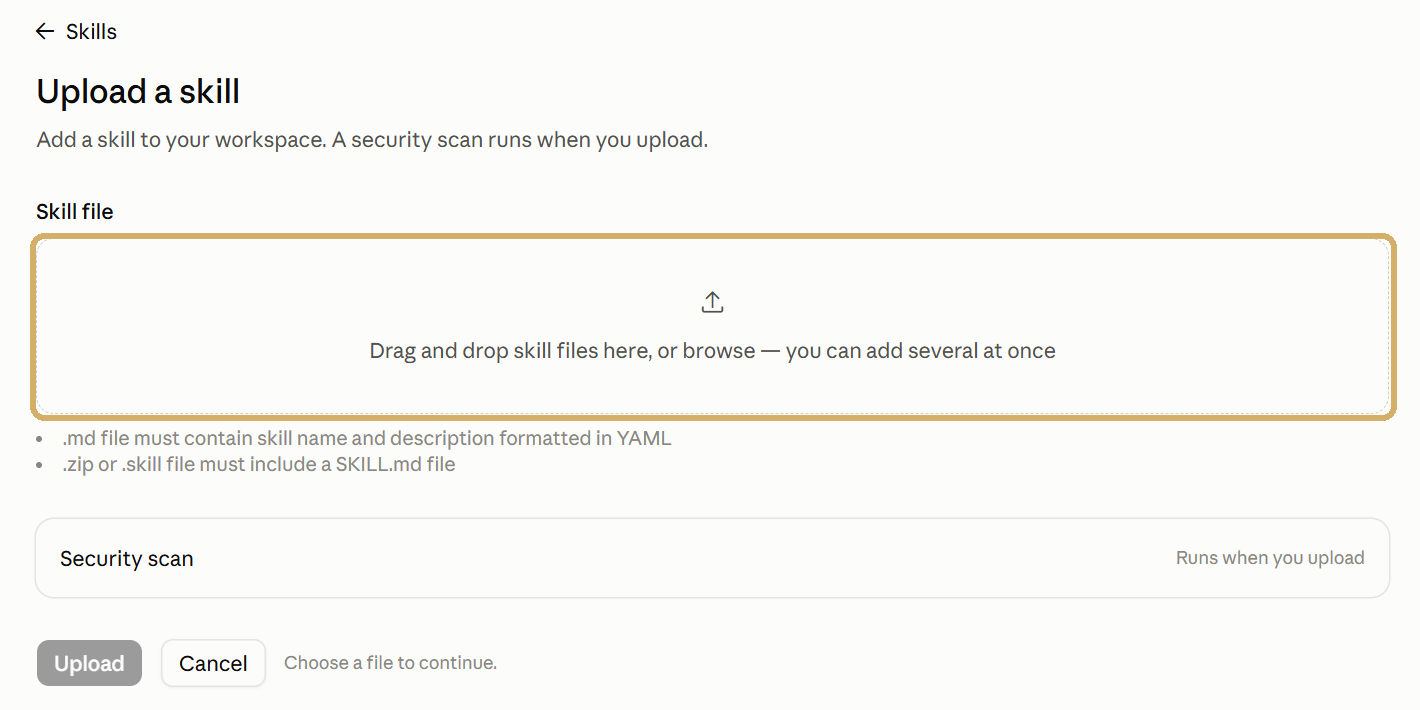
Upload: drag in clean-user-facing-text.zip and click Upload. Claude runs a quick security scan on every skill you add.

The Upload a skill screen with the drop zone circled

If the upload is rejected: install Python from python.org, open a terminal in the unzipped project folder and run: py install_skill.py --skill clean-user-facing-text --target cowork (on a Mac, python3 instead of py). Upload the zip it creates in the dist folder.

Tip: No Skills option under Customize? Turn on code execution in your Claude settings under Capabilities, then reload.

4

Clean your text

Paste in a caption, script or email you wrote with AI and get back a clean copy.

Use the clean-user-facing-text skill on this text and tell me what you changed: [paste your text]

Tip: Claude scores the text first and only rewrites it when it reads as heavily AI-patterned. The skill keeps every fact, name and number, but read the result before you post. Your eyes are the final check.

5

Using Claude Code?

Claude installs both skills for you, including the full Remove AI Marks version for images and documents.

Install the watermarks-remover plugin from github.com/guillaumemeyer/watermarks-remover and walk me through starting the remove-ai-marks service, step by step, in plain language.

Tip: The full version only works while its helper service is running. If you see a "service unreachable" message, ask Claude to start it again.

6

One honest note

Use this on your own work only.

It won't beat AI detectors: It doesn't guarantee your writing will pass an AI detector, and that isn't the point. The point is copy that reads like a person wrote it.

Still disclose AI when it's required: Instagram, Facebook, TikTok and YouTube ask creators to label realistic AI-made images and video. Cleaning a file doesn't change those rules, and schools, clients and employers may have their own.

Want the whole system?

Inside the free AI Creator Academy I show you how I use AI to create content every week, in a way that builds trust with your audience.

Join the free community